

Help
TV app guide
Part 1: sign in and choose who is watching.
The short version
- Open Flanbo on your TV.
- Sign in with your phone (QR code) or your email.
- Pick who is watching.
- Start watching.
1.Open Flanbo
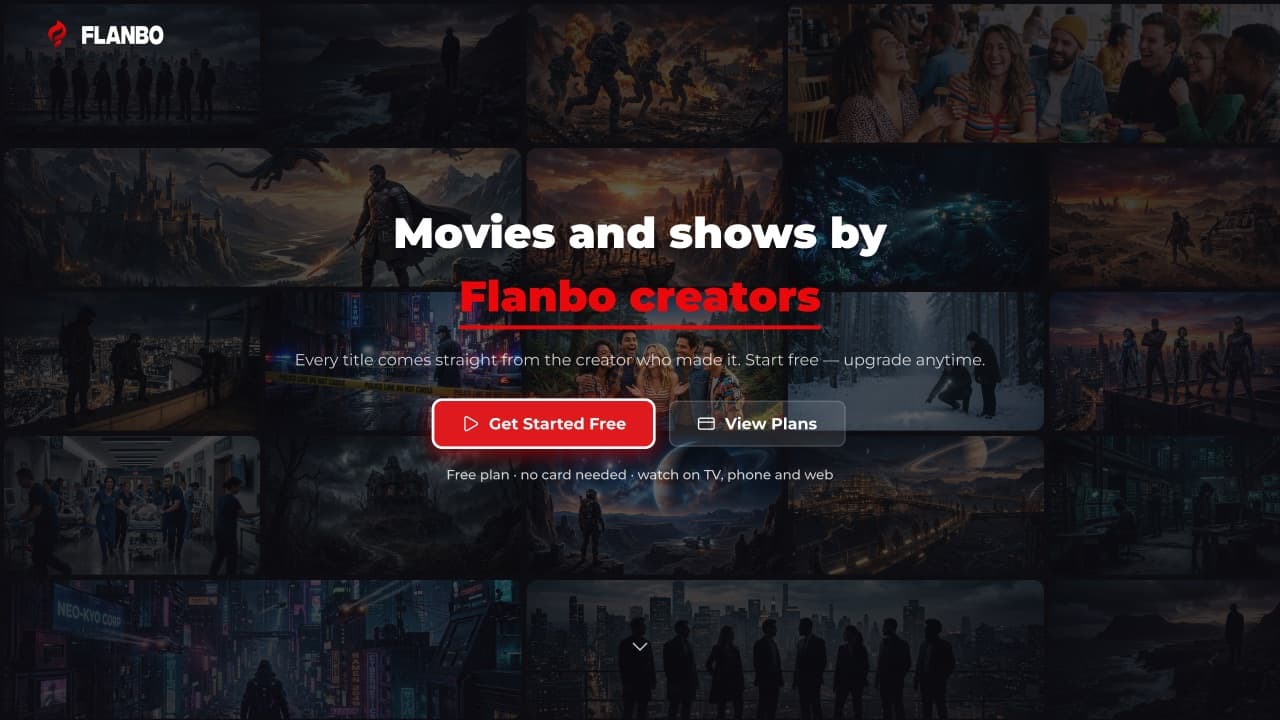
- Choose Get Started Free if you are new, or sign in if you already have an account.
- The TV cannot create an account. It shows a QR code that takes you to sign-up on your phone.
2.New here? Sign up on your phone
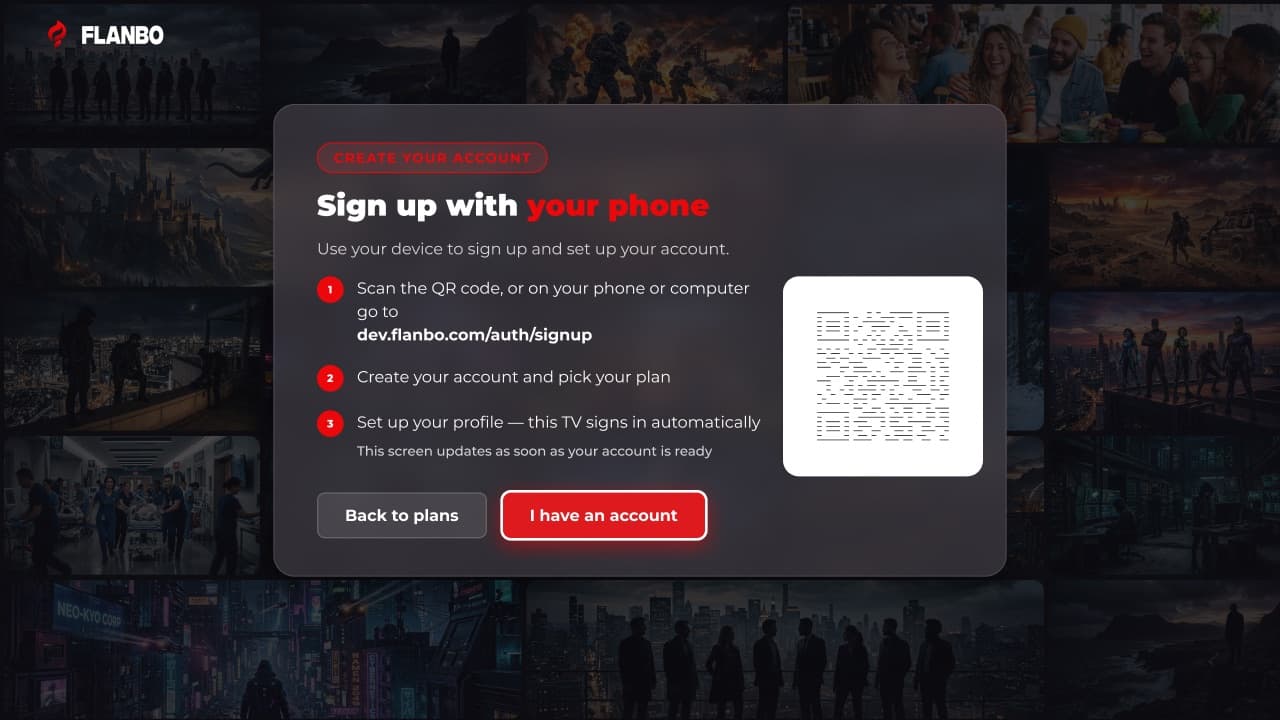
- Pick a plan on the TV. You can change or cancel any time from your phone.
- Scan the QR code with your phone camera, or open the address shown.
- Create your account and pick your plan. The TV updates by itself when your account is ready.
- Already have an account? Choose I have an account.
3.Sign in with your phone
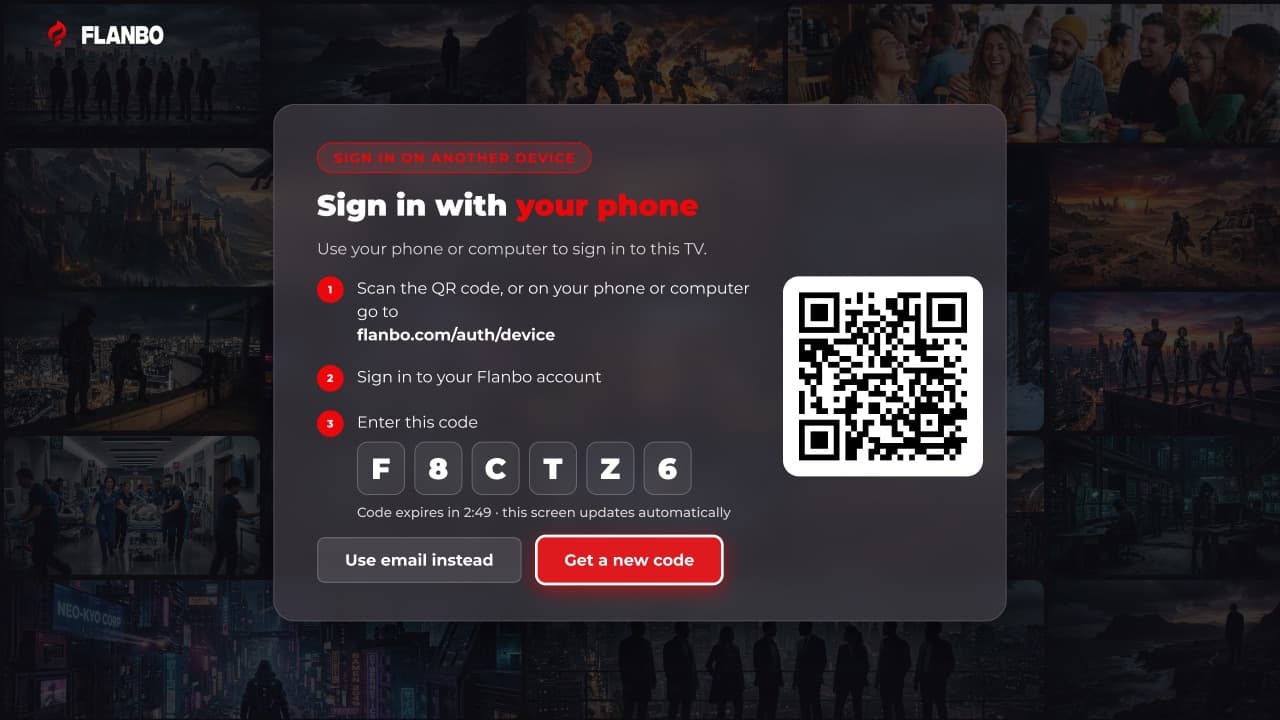
- Scan the QR code, or open the address on any phone or computer.
- Sign in to your Flanbo account and enter the code shown on the TV.
- The TV signs in by itself. If the code runs out, choose Get a new code.
4.Or sign in with your email
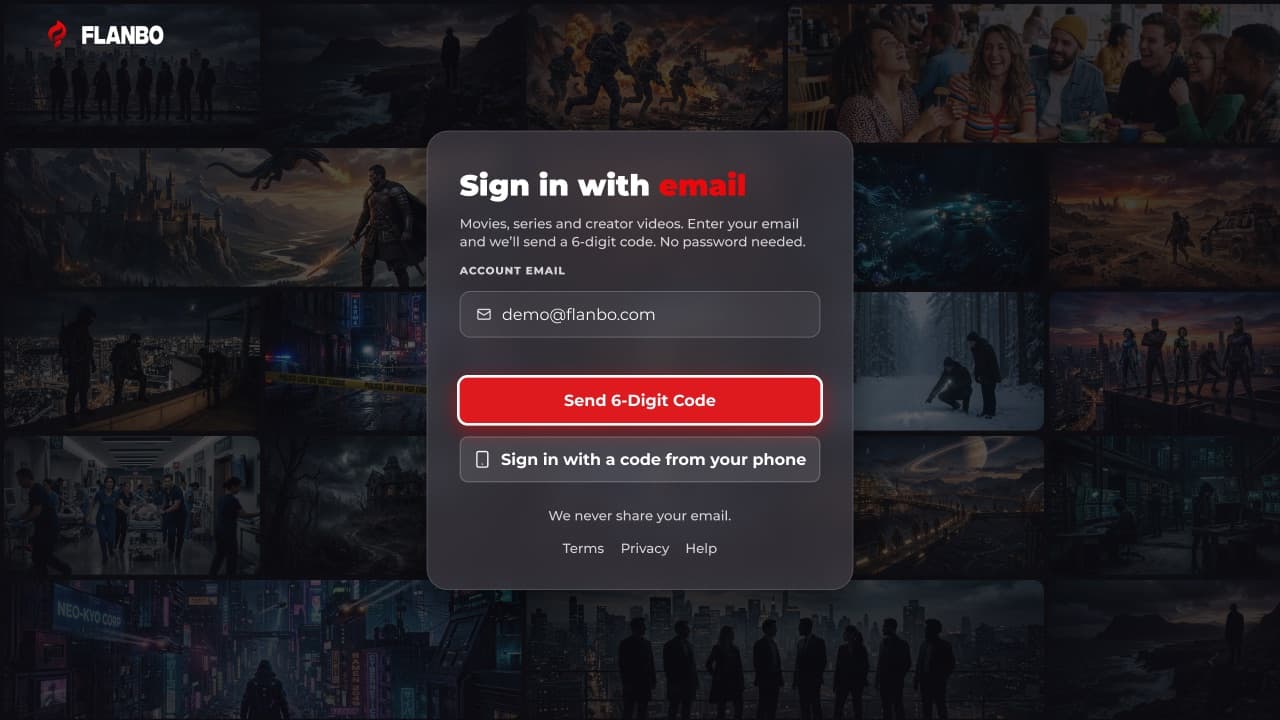
- Choose Use email instead and type your email with the on-screen keyboard.
- There is no password. We email you a 6-digit code.
5.Enter your code
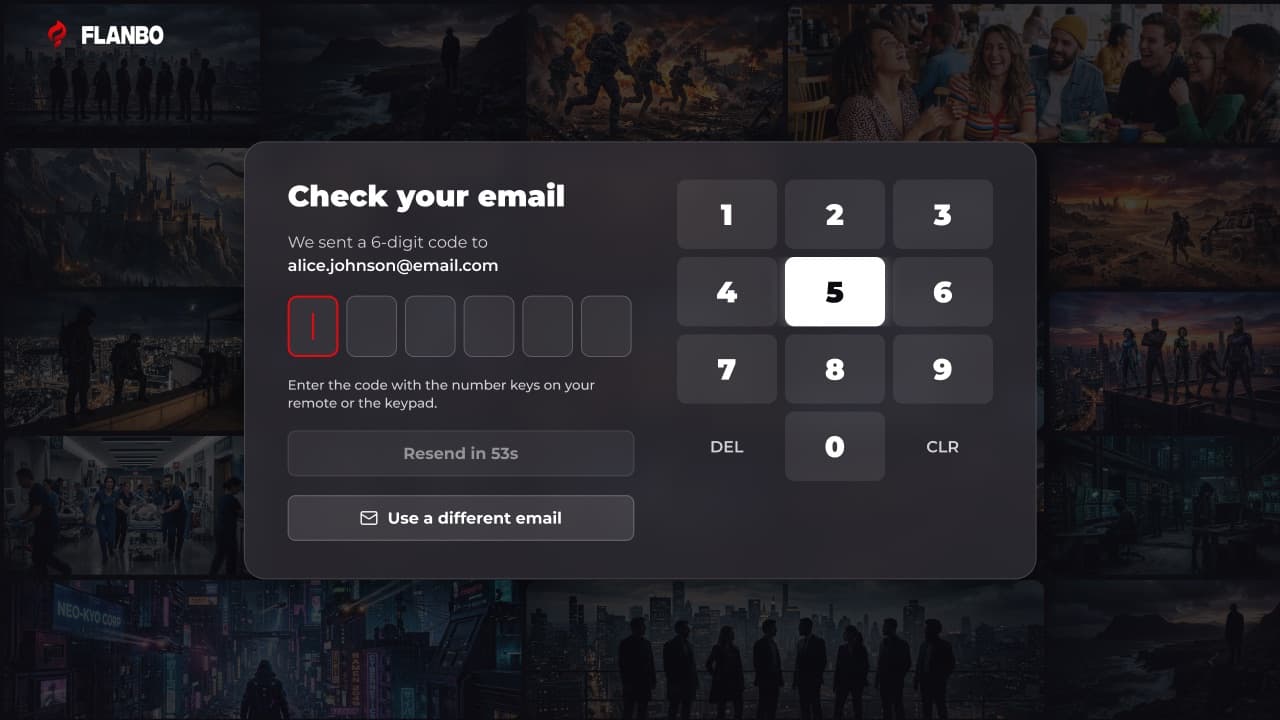
- Enter the code with the number keys on your remote.
- The code works for 5 minutes. Too many wrong tries cancels it; ask for a new one.
- Nothing arrived? Check your spam folder, wait a minute, then request a new code.
- If the email has no Flanbo account, the TV asks you to sign up first.
6.Create your first profile
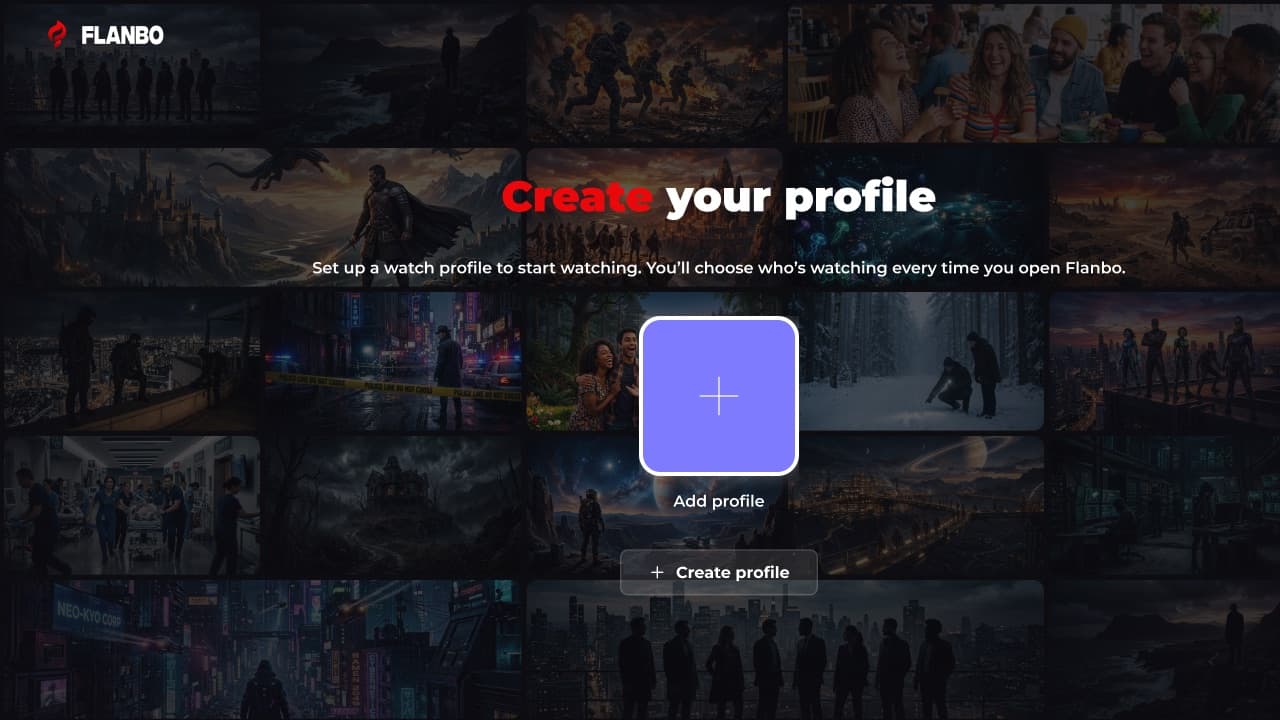
- A profile keeps your watchlist, progress and recommendations separate from everyone else’s.
- If your account has none yet, you create one before you can watch.
7.Name it and pick an avatar
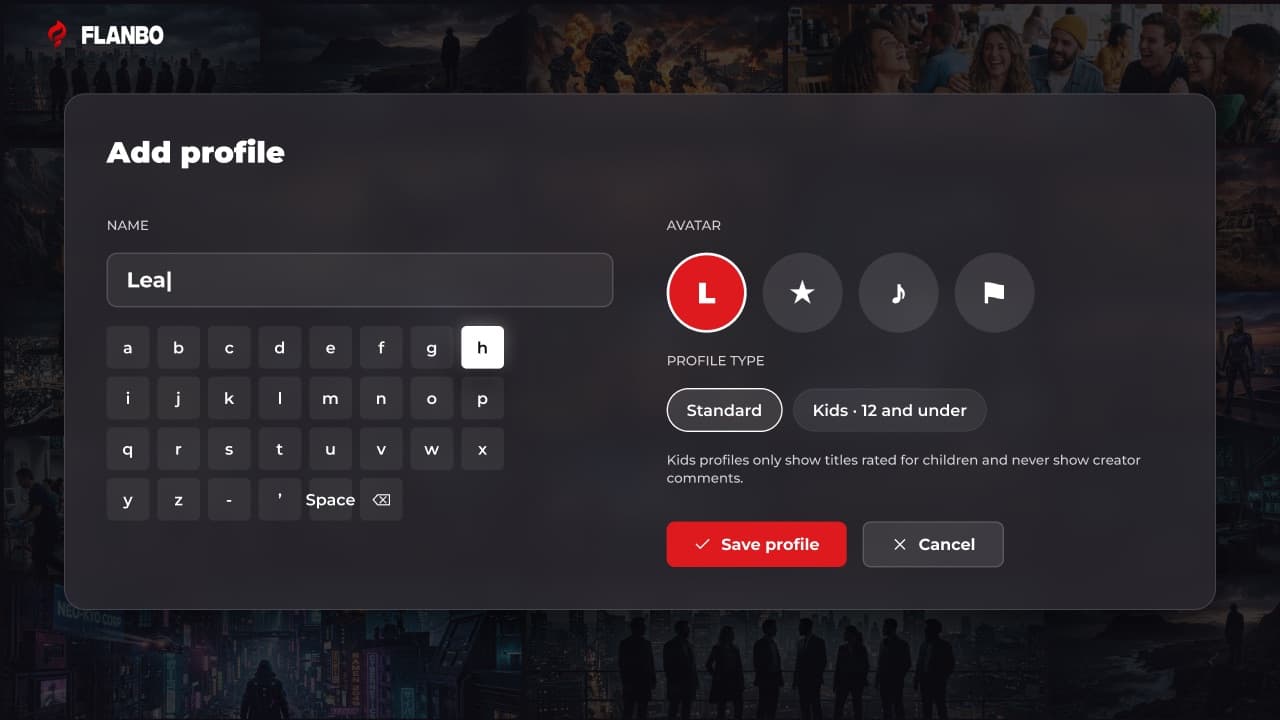
- Type a name and choose an avatar.
- Choose Standard, or Kids (12 and under). Kids profiles only show titles made for children and hide creator comments.
- Choose Save profile.
8.Choose who is watching
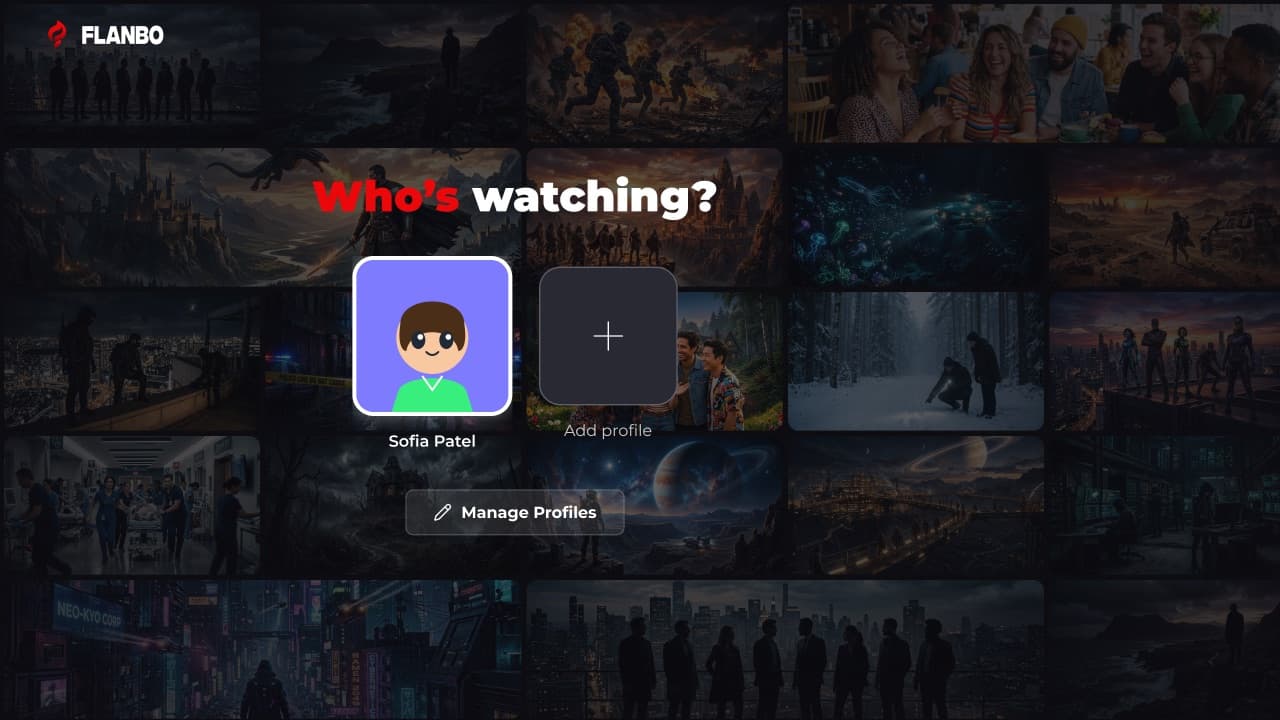
- You choose a profile every time you open Flanbo, even if you only have one.
- Use the arrow keys to highlight a profile and press OK.
- Choose Add profile to create another. You can have up to 4 profiles; once you reach 4, the Add profile tile disappears.
9.Profile PIN
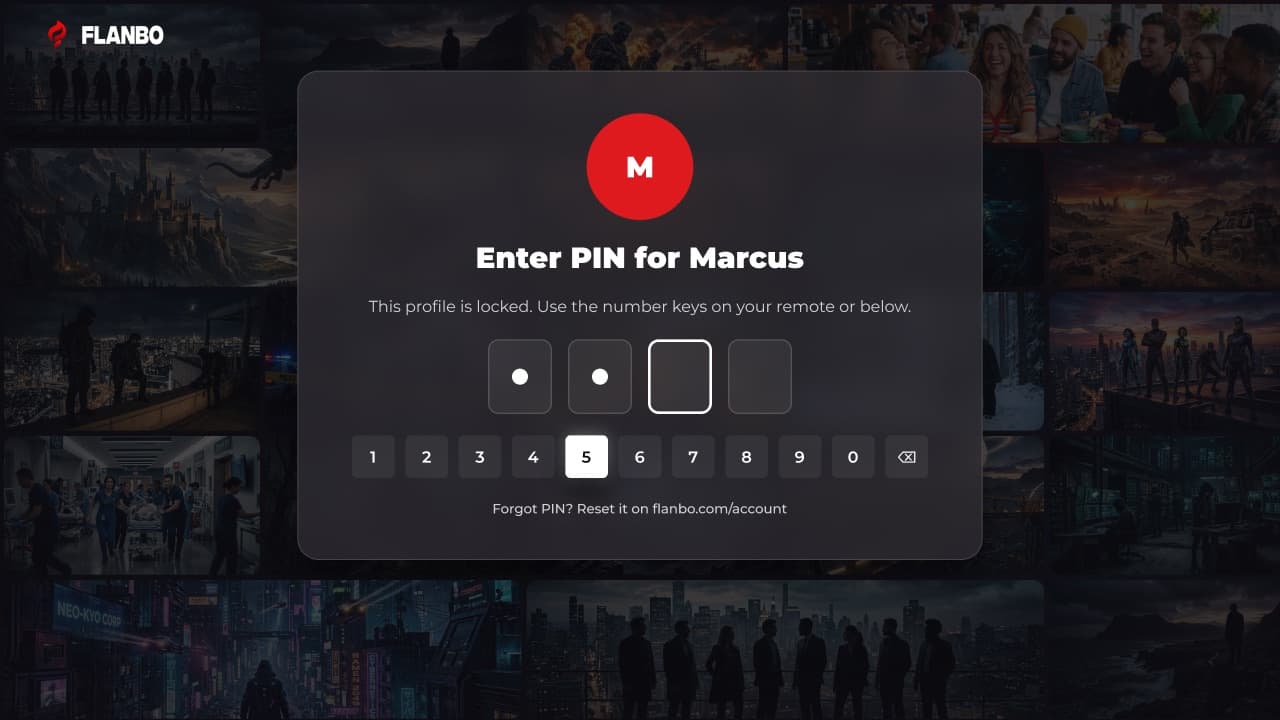
- A PIN keeps a profile private. Set, change or remove it on the website, in your account.
- A wrong PIN shows how many tries are left. After 5 wrong tries the profile locks for 5 minutes.
- Forgot it? Reset it on the website, in your account.
Troubleshooting
- The code on the TV expired
- Choose Get a new code.
- No email code arrived
- Check spam, wait a minute, then request a new one.
- “No account found”
- Sign up first using the QR code.
- The TV did not continue after I signed up
- Wait a moment; the screen updates by itself. If it does not, go back and sign in.
- I cannot add another profile
- You have 4 profiles, the maximum. Remove one on the website first.
- Locked out of a profile
- Wait 5 minutes, or reset the PIN on the website.